Showing posts with label Snapchat Chat. Show all posts

How to subscribe Snapchat Discover Channels

Snapchat latest updates June 7,2016 has added a new feature - the ability to subscribe to publisher's channel on Discover section. This is an attempt to attempt to boost the company’s primary revenue stream and also an aim to increase views of publishers’ content on it’s Discover section.

The update makes the app look a little more magazine-like and changes in the icons now clearly indicating that the left most view is for chatting, and the right side view is for Stories.


This update mean that Snapchat will now allows publishers to include an image and a headline to promote story. Live Stories, which are often more popular than publishers’ stories, will now live alongside on both the Stories and Discover page.To subscribe to Snapchat Discover Channels follow the instructions below;

Here’s how to use Snapchat Discover

1. Swipe left on the Stories screen to open Discover.
2. Tap a channel that sparks your interest!
3. Tap the screen, or swipe left to skip to the next Snap.
4. Many Snaps include an article or video below them! Swipe up on a Snap you’re interested in to see more.
5. Pull down to exit a channel.


How to subscribe Snapchat Discover Channels

There’s a channel for almost everything on Snapchat, whether you’re looking for relationship advice 💏, headline news 📰, amazing photos 📷, or something else!


1. Open the Stories screen, or swipe over to Discover
2. Press and hold on a channel you’re interested in
3. Tap ‘Subscribe’
4. We’ll confirm with a ✔ that you’ve subscribed!

Pro Tip: Still trying to decide if a channel is worthy of a subscription? At the end of every edition, you’ll have the option to swipe up to ‘Subscribe’ to that channel.

How to unsubscribe Snapchat Discover Channels

1. Open the Stories screen
2. Swipe down to find the channel you want to unsubscribe from
3. Once identified, Press and hold on the channel
4. Tap ‘Subscribed.’ The icon will change to a bookmark if you’ve successfully unsubscribed.


Happy Snapping!

How to send pictures on Snapchat Chat messages

The Snapchat app for iOS and Android enables you to share real-time photo chat images with your social media friends and followers. However, before the launched of Snapchat 2.0 Unfortunately you cannot upload pictures or videos to Snapchat that are already in your cell phone gallery , Snapchat only allows you to upload the pictures or videos that were taken within the official Snapchat itself. To perform this task, you need a third party apps that provides an intermediate step between the Snapchat camera and your device’s Sharing menu. In order to upload photos to Snapchat from your Phone (Android or iOS) Gallery there are specific apps available on the Stores such as Swift Pic, Photosaver or Snap Up for uploading your images to Snapchat.

With frequent updates more features are being added in to Snapchat, which makes one of the hottest photo messaging on the rise. Unlike many messaging apps Like Facebook Messenger, Twitter, Instagram, Instagram and others, Snapchat is no doubt a complicated apps. We, all need some kind of guide to use its available features. Becoming a Snapchat pro is hard. You might know how to blow up emoji characters or how to write more than one line of text in the app, but there are plenty of other tricks left — in this post we will guide you on how to send pictures or photos from your cameral roll in a Snapchat Chat.

Update Snapchat


Please always make sure that you have the latest Snapchat version installed, otherwise you might not be able to enjoy all the features. Always look for updates, as Snapchat updates are frequently being released. A recent update adds Chat 2.0, and previous updates added lenses and the abilitly to replay pictures and videos through in-app purchases. The most recent Snapchat app update allows you to add emoji stickers to video. To enjoy all these features update your app.

To update Snapchat to the latest version, head over to your respective app store and check for updates. If you're on iOS, go to 'Updates' to check for new versions of your installed apps. If Snapchat is in the list then you can go ahead and download the update. Android users need to open the menu within the Play Store and select 'My Apps'.  Select Snapchat and hit update if it's in the list.


Sending or Creating a Chat


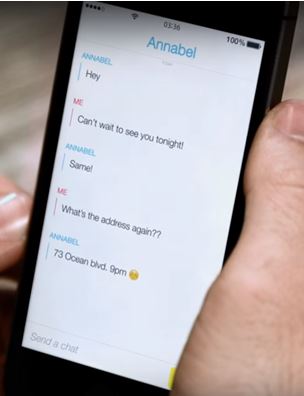
For some newbie, let's first see into how to start a Chat. Please follow the step-by-step- instructions below;

1. To start a Chat, swipe right on a friend's name or tap the Chat icon in the top left corner of the Feed screen as shown in the image.
2. Like sending a normal message in your device, to send your friend a chat, enter your text and tap ‘Send’ on your device's keyboard.

You can make your text message more than just a plain text by  adding sticker. Tap the emoji icon to view all the available stickers, then tap on the particular sticker to send one. Or, type a word like ‘happy’ and then tap the icon to view ‘happy’ stickers.

Saving a Snapchat Chat Once everyone in the Chat has viewed the message and closed the Chat screen, the message will disappear from Chat. Don’t forget - you or your friend can always press and hold to save a message or you screenshot it to keep a fun memory.

Saved messages are highlighted in gray. Press and hold on a saved message to unsave it. If the message doesn’t disappear after you unsave it, this means that your friend may have saved the chat.

How to Share or Send Saved Photos From Your Device in Snapchat Chat


With the latest Snapchat updates, sending or sharing a photo to your friend in Chat just got easier. You no longer need third party apps to do this. Here's how you do it;

First make sure that Snapchat has access to your photos in your device's settings. If you haven't change the permission settings please the steps below;

iOS Permissions

To customize your Snapchat permissions on iOS follow the steps below.

1. Tap the Snapchat icon at the top of your camera screen
2. Tap the Settings icon in the top right hand corner of your Profile screen
3. Tap 'Manage' under the 'Additional Services' section
4. Select 'Permissions'
5. Scroll down and tap 'Edit Permissions'
6. Toggle on or off one of the permissions to customize your settings. Once enabled Snapchat will get access to your Location, Camera, Microphone, Notifications, ,Photos, Contacts.


Android Permissions

To set your Snapchat permissions follow the steps below.
1. Tap the Snapchat icon at the top of your camera screen
2. Tap the Settings icon in the top right hand corner of your Profile screen
3. Tap 'Manage' under the 'Additional Services' section
4. Select 'Permissions'
Here’s how to send a photo or video from your Camera Roll in Chat:

1. Tap  on the left below the text box.
2. Select one or more photos or videos you’d like to send in Chat. If you select more than one photo or video you will be unable to ‘Edit’.
3. If you want, you can get creative with your photo or video by adding a doodle or caption — just tap ‘Edit’ before you send it.
4. Lastly, tap  to send the photo or video to a friend!

To send a photo or video directly from your device's Photos app to a friend, follow the steps below

Please note that this is only available on devices with iOS 8 and newer devices. 1. Select an image in your Photos app and tap .
2. Tap the '...More' button.
3. Toggle 'On' for Snapchat
4. Tap Snapchat icon  .
5. Add a caption or doodle to the photo to make your Snap more fun, then tap .
6. Select which friends you want to send the photo to on the 'Send To...' screen, and tap . The image will send as a Chat message to your friends!

That's it. Happy Snapping!


Other posts you might also like:

How to use Snapchat Like a Pro - A Complete Guide
Snapchat Score - How to Increase Snapchat Score
Snapchat Filters List and How to Use Snapchat Lenses or Filters?
Snapchat Names or Usernames of Celebrities
What Does Hourglass Emoji Mean on Snapchat? Snapchat Emoji Meanings
Snapchat Face Swap ~ How to use Snapchat Face Swap
Snapchat Trophy Case List - Complete list of Snapchat Trophies

How to Video Chat on Snapchat? - How to Live Chat on Snapchat?

Snapchat is a popular messaging app and it has created a brand new channel for communication - its popularity stems from offering users something wholly unique, yet incredibly familiar. Its user base increase sharply since it was launched especially in the United States. According to the available statistics in May 2015, Snapchat app's users were sending 2 billion photos and videos per day, while Snapchat Stories content was being viewed 500 million times per day. In November 2015 the number reached 6 billion of videos per day. In 2016, Snapchat hits 7 billion daily videos views that is one of the highest among the messaging app.


People often compare Snapchat to popular photo sharing app Instagram, but the two have pretty distinct use cases. Instagram is more for more polished photos and use. Instagram is for choosing the best photos from your day or week and publishing them to your friends.  When you share a photo on Instagram, you’re broadcasting to the world. When you share a photo or video on Snapchat, you’re sharing a moment with your chosen friends or particular fiend only. Basically Snapchat is much more personal experience.
Snapchat’s social engagement loop is not unlike text messaging. When a photo/video is shared, the recipient(s) receives a push notification, bringing them back to the app with an implicit call-to-action to reply and the loop continues. Friction of taking a snap and sending it to your core friend group is very low, nothing else really comes close to this. Also looking through all your snapchats is not very time consuming.
Snapchat Video Chat has been around now for a while. In order for you to video chat with another Snapchat user, you both need to on the chat, and you can not call or request a call, second the internet connectivity either WiFi or your data plan needs to somewhat good or else it would crash, freeze or just not function properly.


Snapchat video chat works like most normal video chat, when someone send you a chat request, Snapchat will alert you when your friends are online and actively reading your chat messages. It's interesting because it can be a one-way or a two-way chat: you can send a video stream of information to a person without them returning the favor, and vice versa, but you can also both join in. And you don't have to flip the phone around to show off that beautiful meal you just prepared: Both sides of the conversation use a gesture (upward finger drag) to flip between the front and the rear camera.

How to Video Chat on Snapchat?

To learn how to video chat on Snapchat, just read and follow these simple steps we have provided;

1. Opening up the app- Tap the Snapchat icon to open up the app.

2. For a video chat, you and the friend you want to video chat with must both be using the app at the same time. When you and your friend are both present in Chat, the Chat icon will turn blue, indicating that you and your friend are both ‘Here'. Normally, there's a little yellow icon to the top right of your keyboard. Tapping it takes you back to the camera view to create a snap.

3. Swipe to the right on someone's name in your list of conversations and you'll be able to send them text. Press and hold the blue icon to immediately send live video and audio of yourself to your friend. When your friend does the same, you will be in a two-way chat.


Please note that the chat will end if you remove your finger from the screen unless in locked position.

4.  Locking position- To lock the chat in place and be able to take your finger off the screen, move your finger down to the lock icon, then release your finger.

5. Drag your finger up or down to switch views from the front-facing camera to the rear-facing camera.
The circle with your image will disappear if you hold your finger in the same spot. Move your finger if you want to make the circle reappear.


6. To flip your camera while locked, double tap anywhere on the screen.

7. To end the video chat, drag away from the locked position and take your finger off the screen.


Poor Connection Message
If you see a 'Poor Connection' message while video chatting, it means that you have a weak network connection. Try connecting to another network for a better experience
Please note: Video chat works when you and your friend are both present in Chat. The  will turn blue when you are both Here. If the yellow icon is not turning blue when you and your friend are both in Chat, it might be because one of your devices is not compatible.

How to send Snapchat video without sound?

Sometimes video sound are annoying, if you are one of those person who hates the sound of a video you may follow this steps. For iPhone & Android film a video, and click the bottom right button with a speaker.  The waves in the icon will disappear when sound is removed.  If you're unsure, turn the volume up on your phone to test if the audio is playing alongside the video.


You May Also Like:
How To Use Snapchat Moving 3D Stickers Emoji In Videos
Snapchat Names or Usernames of Celebrities
What Does Hourglass Emoji Mean on Snapchat? Snapchat Emoji Meanings
Snapchat Online Login ~ How to Login Snapchat Online?
Snapchat Face Swap ~ How to use Snapchat Face Swap

Snapchat On-Demand Geofilter - Snapchat Custom Filters. How it Works

Snapchat rewind filter on Android ~ Snapchat Updates Brings Rewind Filter to Android
Snapchat New Trophies - Snapchat Added Eight (8) New Trophies on December 22nd, 2015

Snapchat ‘Speed Modifiers’ Video Filters - How to use snapchat Slow Motion, Fast-forward and rewind filters
What does a Gold Star emoji mean on Snapchat? What Does a baby mean on Snapchat?
What are Snapchat Trophies? What do Snaptchat Trophies mean?
How to use Snapchat lenses?
Snapchat Add Nearby - Snapchat Update
How to use Snapchat? Setting up Snapchat Account
Download Snapchat for Android, iOS and Windows
How To Remove or Delete friends on Snapchat
How to Create and Send Snaps on Snapchat?
Snapchat Emoji meanings ~ Snapchat Updates
What Do Snapchat Emojis and Numbers Mean?
Snapchat Geofilters - Everthing you need to know
How to Search Snapchat Username, Lookup Snapchat Usernames
What Do Snapchat Emojis and Numbers Mean? 
Snapchat Hack: How To Record Longer Videos On Snapchat or increase Snapchat Video length

Snapchat Chat Reply - How to Chat and Reply to Snaps or Stories on Snapchat

Snapchat's latest update (19th November, 2015) version 9.20.0.0 has added some more interesting features.  This update allowed Snapchatters to slow down, speed up or reverse their videos and also brings the "Lenses" feature to the rear camera. By activating the Lenses while filming someone by holding a finger over their face, you'll see a grid displayed over it, and an array of Lenses at the bottom to swipe over.

The recent update also introduced support for 3D Touch in the new iPhone 6S and 6S Plus. Snapchat has also added small timestamps to the right of your list of stories to watch, indicating how recently a story was last updated. It's a small feature, but it beats guessing how old a story is by eyeballing the shrinking pie chart graphic on each one.


The most interesting feature added in the newest update to enhance your disappearing-picture experience, however is the “Chat”. This Chat feature make it easier to reply to story snaps and easier to chat. Definitely made it a lot easier for people to engage with friends while watching their stories.

This update is available both for iOS and Android and puts a little "Chat" prompt at the bottom of the screen while watching a friend's story. The chat feature is not new in Snapchat, it has been around for quite some time, but now that it is tied to the Story feature, chatting can now be more personal, and maybe even more fun, considering what many teens use Snapchat for these days.


How to Chat with friends and Reply Chat on Snapchat?

Here’s what Snapchat in their official blog had to say about this new feature.

“Swipe right on a friend’s name in your Snapchat inbox to start chatting. When you leave the Chat screen, messages viewed by both you and your friend will be cleared – but either of you can always tap the message or screenshot to save anything you’d like to keep (addresses, to-do lists, etc.)!

We let you know when a friend is Here in your Chat so that you can give each other your full attention. And if you’re both Here, simply press and hold to share live video – and chat face-to-face!”


This Chat feature makes it easier to start a conversation with another user based off something they snap to their story, whereas before users weren't quite sure which snap any incoming message may be replying to. Now, when viewing a snap in someone’s story, you can swipe upward to send that user a direct chat message. The friend you're talking to will receive a notification to the conversation along with the Snap being discussed. Pleease note that to enjoy this new feature you need to update your already Snapchat App.


Happy Snapping!


More Tips: 
Check out:
How To Use Snapchat Moving 3D Stickers Emoji In Videos
Snapchat Names or Usernames of Celebrities
What Does Hourglass Emoji Mean on Snapchat? Snapchat Emoji Meanings
Snapchat Face Swap ~ How to use Snapchat Face Swap
How to Video Chat on Snapchat? - How to Live Chat on Snapchat?
Snapchat New Trophies - Snapchat Added Seven (7) New Trophies on December 22nd, 2015
Snapchat ‘Speed Modifiers’ Video Filters - How to use snapchat Slow Motion, Fast-forward and rewind filters
What does a Gold Star emoji mean on Snapchat? What Does a baby mean on Snapchat?
What are Snapchat Trophies? What do Snaptchat Trophies mean?
How to use Snapchat lenses?
Snapchat Add Nearby - Snapchat Update
How to use Snapchat? Setting up Snapchat Account
Download Snapchat for Android, iOS and Windows
How To Remove or Delete friends on Snapchat
How to Create and Send Snaps on Snapchat?
Snapchat Emoji meanings ~ Snapchat Updates
What Do Snapchat Emojis and Numbers Mean?
Snapchat Geofilters - Everthing you need to know
How to Search Snapchat Username, Lookup Snapchat Usernames
What Do Snapchat Emojis and Numbers Mean? 
Snapchat Hack: How To Record Longer Videos On Snapchat or increase Snapchat Video length